Managing Users
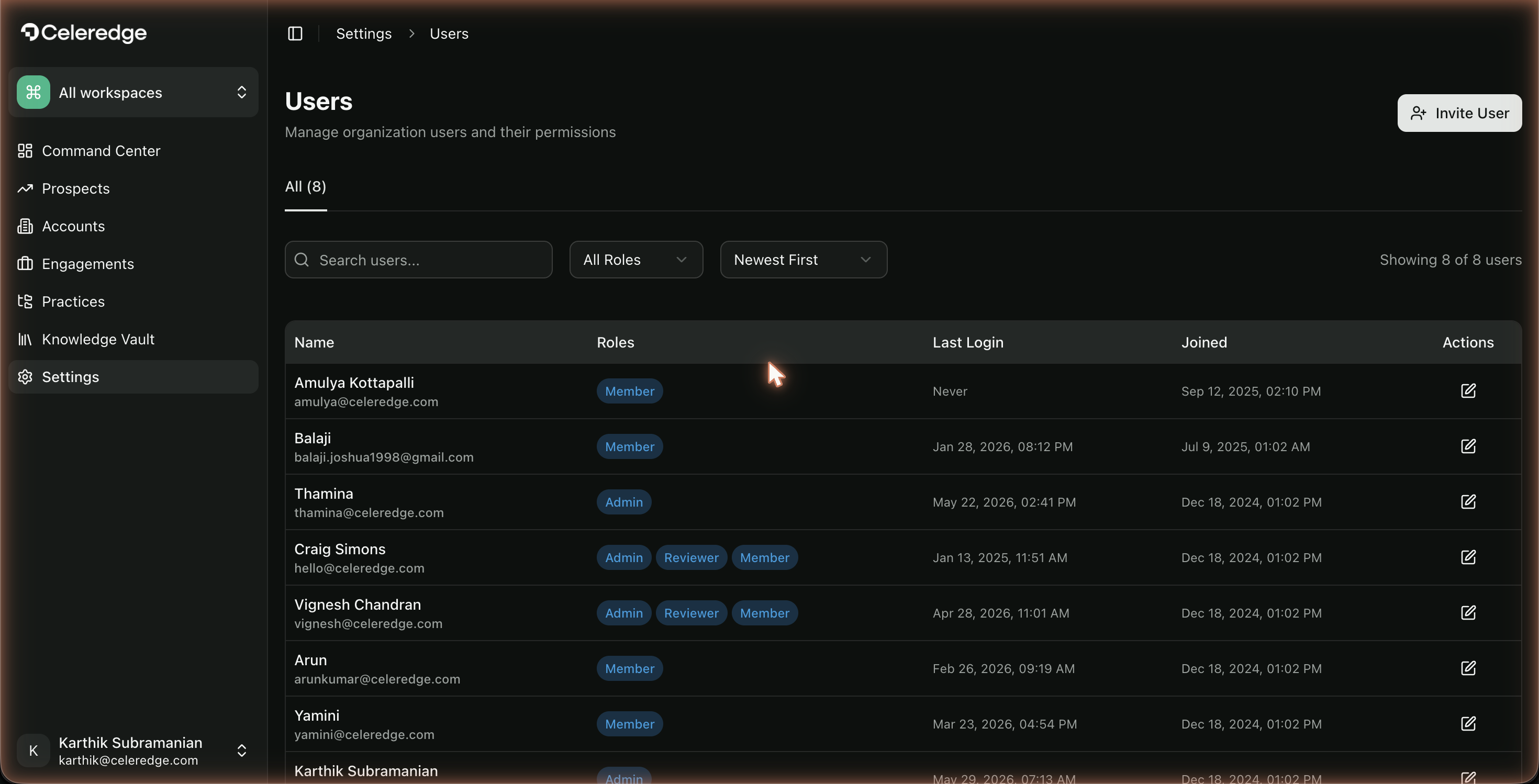
The Users area is where an Organization Admin brings people into the firm's Celeredge tenant and sets their roles. It lives at Settings → Users.
Who can access
How it works
The Users page shows a searchable, filterable table of everyone in your firm's tenant — with their role, last login, and join date. Invite User adds a new person and assigns their role at the point of invitation.
Roles you can assign at invite
| Role | Summary |
|---|---|
| Organization Admin | Full firm administration |
| Member | Standard consultant access; works inside engagements they're on |
| Reviewer | Read-only review access |
| External | Limited, scoped access for outside collaborators |
See Roles & Permissions for exactly what each can do.
Step by step
- Open Settings → Users.
- Click Invite User.
- Enter the person's details and assign a role.
- Send the invitation. They appear in the user table once added.
- Add them to specific engagements via the engagement Team page.
Best practices
- Assign the least-privileged role that fits. Most consultants are Members; reserve Org Admin for the few who run the tenant.
- Use External/Reviewer for outsiders. Client-side collaborators rarely need full Member access.
- Add to engagements explicitly. Firm role grants tenant access; engagement work needs team membership.
Common errors
| Symptom | Likely cause | What to do |
|---|---|---|
| New user can't see an engagement | Not added to the engagement team | Add them in the engagement's Team page |
| Need to change someone's role | Role is set at invite | Adjust via the Users area; if an option isn't available, contact Celeredge support |