Diagnose
Diagnose is the first phase of the engagement lifecycle. It's where you establish the current state of the client and surface what needs to change. Diagnose gives you two methods to do that — pick the one that fits the question you're answering:
| Method | Use it to… |
|---|---|
| Assessment | Score the client against an expert framework, grounded in evidence, and surface gaps |
| AI baseline | Generate an AI baseline of the engagement's current state from its data and documents |
You switch methods with the tabs at the top of the Diagnose page. Whatever you produce here feeds the rest of the engagement through lineage — the strip at the top of the page keeps each result connected to the gaps, workstreams, and deliverables that follow.
Causal & impact and Financial model used to live here as extra Diagnose methods. They now have their own home in the engagement's Analysis workspace, where they're plan-gated: Causal & impact is available on Professional and Enterprise, and Financial model on Enterprise. Run them from the Analysis section in the sidebar.
Who can access
Members of the engagement team.
Assessment
An assessment scores the client against an expert framework and grounds every answer in evidence. Runs are versioned — re-running never overwrites an earlier version, so you can re-run as evidence improves and compare.
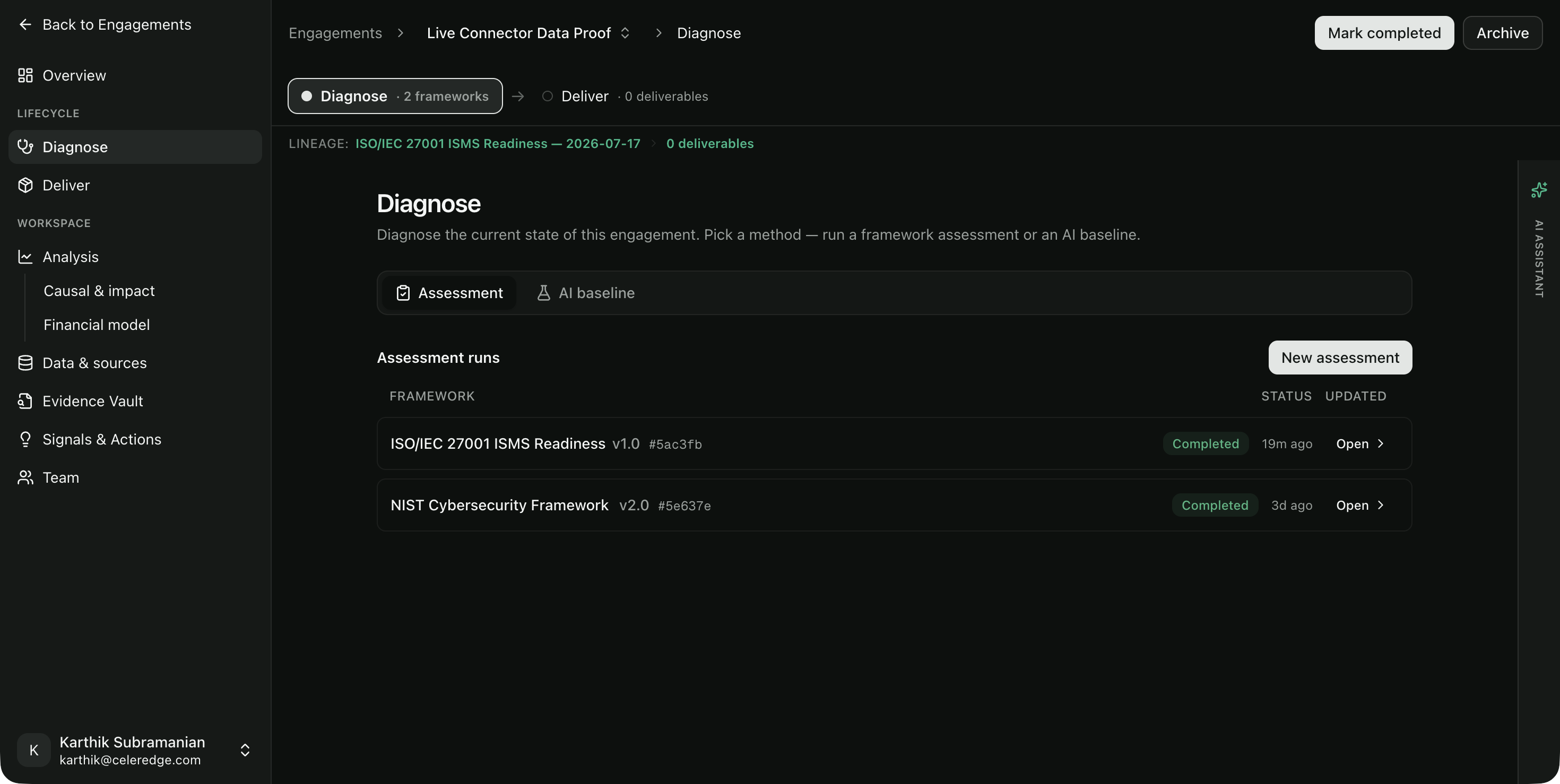
The Assessment tab opens on your list of past runs, not a setup form — each row shows the framework, its version, the run's status, and when it last changed. Open a run to drill into its detail, or click New assessment to start another.
How it works
- Start a new assessment. From the runs list, click New assessment. (The framework selector only appears here — it isn't cluttering the page the rest of the time.)
- Pick a practice. Step 1 of 2. Diagnoses are organised by the consulting practice they fall under. Each practice shows how many frameworks are available for the engagement's industry — if a practice shows 0 frameworks available, adjust the engagement's practices or industry (Manage practices).
- Pick a framework. Step 2 of 2. Choose a framework from that practice (e.g. NIST Cybersecurity Framework, ISO/IEC 27001, SOC 2). Each framework shows its version.
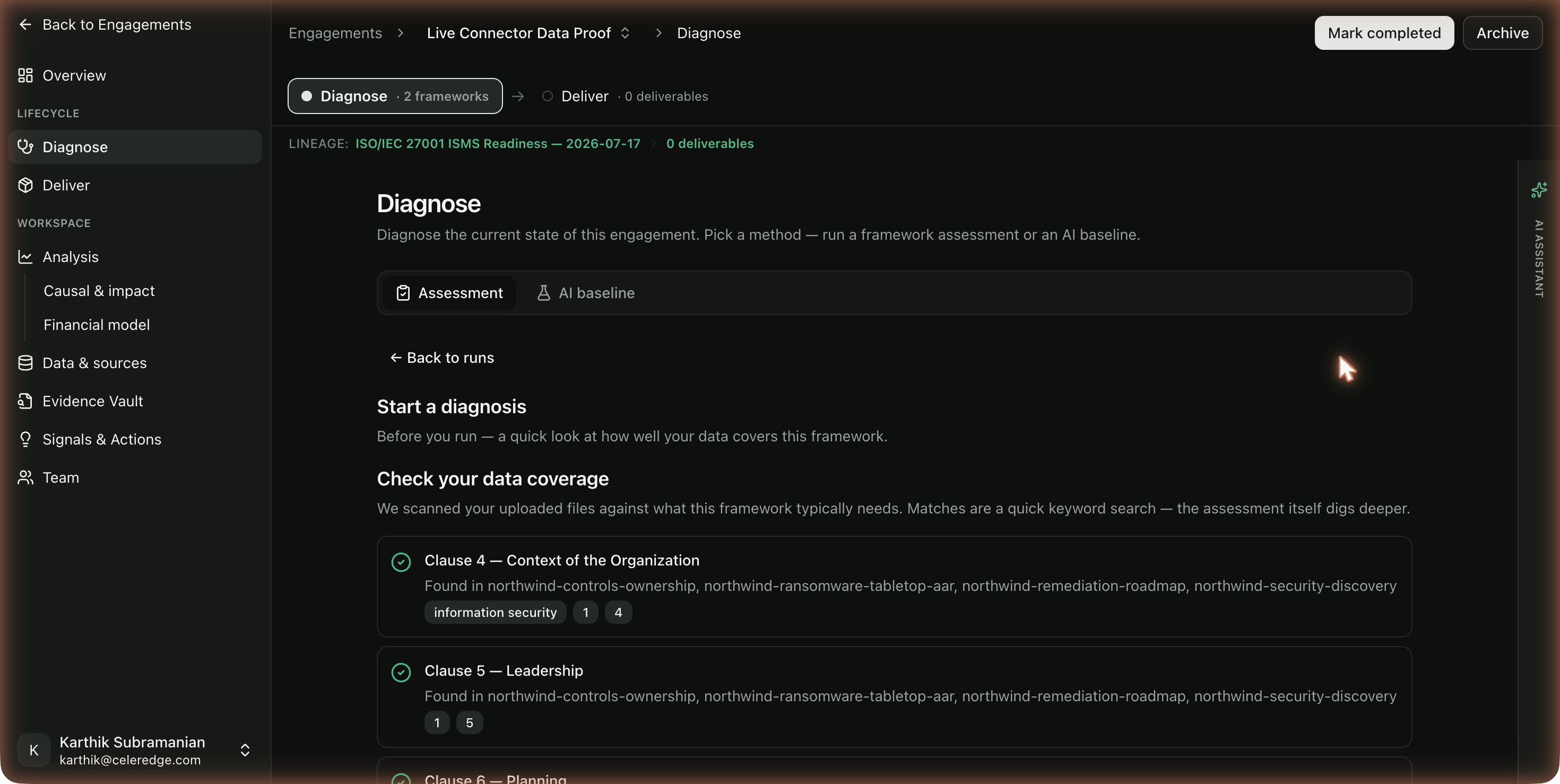
- Check your data coverage. Before the run, Diagnose scans the engagement's uploaded documents against what the framework's areas typically need and shows a per-area read: areas with matching evidence are marked found (with the documents they were found in), and areas that look thin are highlighted as possible gaps (with the terms it couldn't find). This is a quick keyword check — the assessment's own retrieval digs deeper — so it never blocks: you can Upload more files first, or Run assessment anyway.
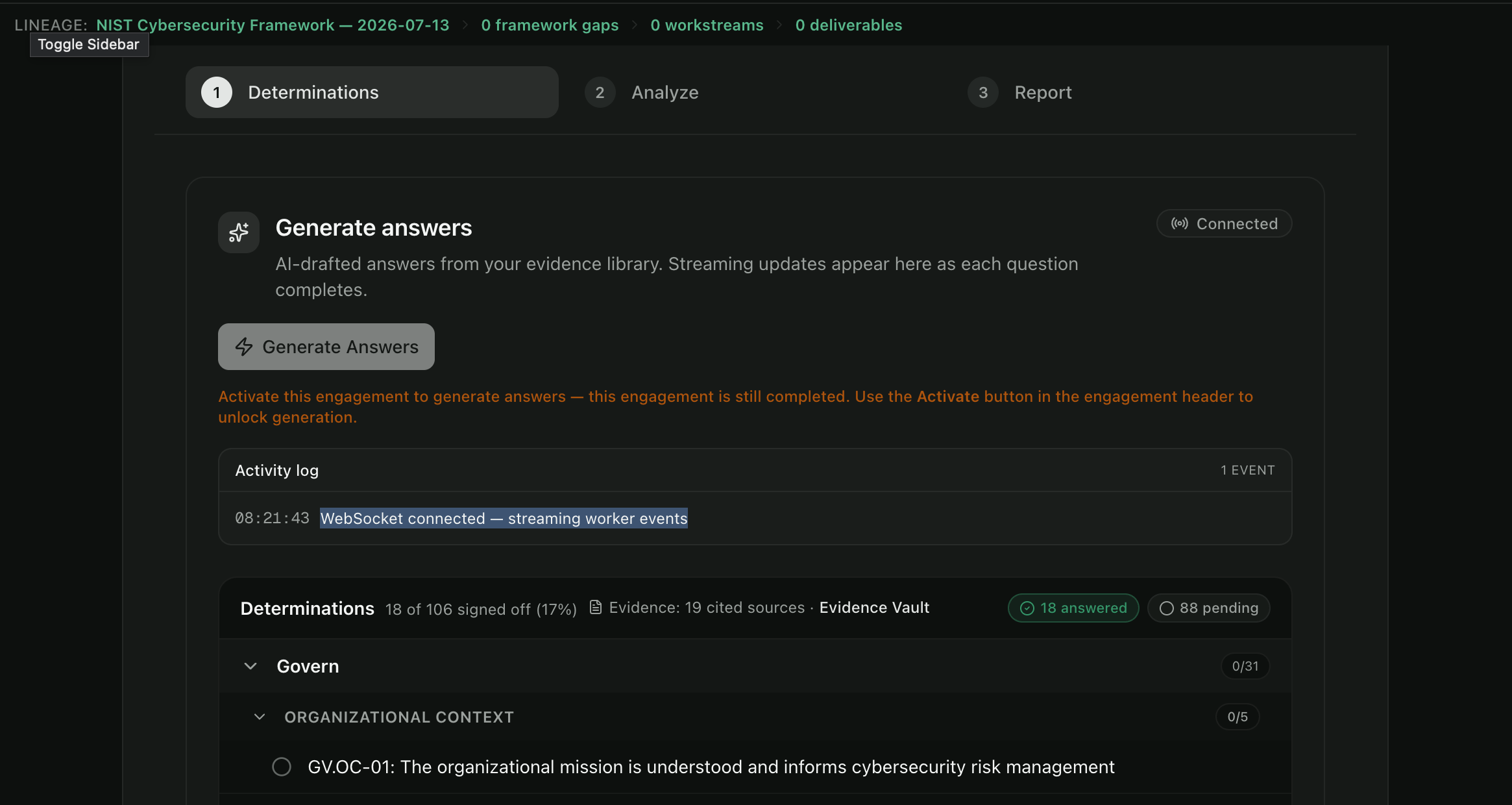
- Generate answers. Running kicks off the assessment. AI drafts an answer for each framework question from your evidence library, streaming updates into the run as each one completes. The run is versioned and progresses through Determinations → Analyze → Report. You land straight in the new run's detail view.
- Review determinations. Answers are grouped by the framework's structure (for NIST, its functions — Govern, Identify, Protect, Detect, Respond, Recover). Each shows a confidence score, the cited evidence behind it, and a link into the Evidence Vault. A sign-off counter tracks how many you've reviewed (e.g. 18 of 106 signed off).
- (Optional) Track interviews. The Interview Tracker lists any outstanding AI interview invitations feeding this assessment.
- Accept answers. Once answers are ready and gaps are resolved, click Accept answers. Accepting unlocks downstream analysis, and the resulting gaps and recommended workstreams are reviewed here in Diagnose before the work is carried into Deliver.
Opening past runs
The runs list keeps every version. Click Open on any row to drill into that run's detail — its determinations, live status, logs, and findings — without those details crowding the list. Use the version timeline inside a run to switch between versions of the same framework or to regenerate.
AI baseline
An AI baseline generates a first read of the engagement's current state directly from its data and documents — no framework required. Before it runs, Diagnose does a few readiness checks:
| Check | What it needs |
|---|---|
| Engagement objective | An objective or description set on the engagement |
| Engagement industry | The engagement's industry set in settings |
| Data sources | At least one connected data source, enriched |
| Documents | Supporting documents available |
Resolve any items flagged Action needed, then click Run AI Baseline Analysis. See Autopilot Baseline for the full detail.
Going deeper — the Analysis workspace
Once you've established current state, the Analysis section in the sidebar takes it further. These tools are plan-gated and each needs connected data to be useful:
- Causal & impact (Professional + Enterprise) — discover what drives a KPI and simulate the impact of changing each driver. See Causal Analysis.
- Financial model (Enterprise) — build a financial model for the engagement where every number is linked back to its source, so the model is inspectable and defensible. See Financial Model.
Both prompt you to connect a database to get started when the engagement has no data source yet.
Best practices
- Match the method to the question. Use an assessment for maturity/compliance against a standard and an AI baseline for a fast current-state read; reach for causal analysis or a financial model in Analysis to explain or quantify a metric.
- Load evidence before you run. Every method is only as good as the evidence it can retrieve. The data-readiness check flags obvious gaps, but aim for solid document coverage and, where relevant, a connected database.
- Re-run as evidence grows. Assessment runs are versioned; don't treat the first run as final.
- Read the confidence and the citation, not just the answer. A high-confidence determination with a clear citation is defensible; check the source before accepting.
Common errors
| Symptom | Likely cause | What to do |
|---|---|---|
| Practice shows 0 frameworks available | No frameworks match the engagement's industry for that practice | Try another practice, or update the engagement's practices/industry via Manage practices |
| Data readiness flags several areas as gaps | Few or no documents cover those areas of the framework | Upload more files in Data & sources, or Run assessment anyway and let the run flag unanswerable questions as evidence gaps |
| Assessment won't start | The framework isn't fully prepared for execution | Pick another framework, or contact your Celeredge admin — a framework must be compiled before it can run |
| AI baseline blocked | A readiness check is unmet (objective, industry, data source, or documents) | Resolve the highlighted Action needed items, then run |
| No Analysis section in the sidebar | Analysis is plan-gated (Professional for Causal, Enterprise for Financial model) | Upgrade the plan, or use Assessment / AI baseline in Diagnose |
| Can't generate answers | The engagement is Completed | Re-activate the engagement from its header, then generate |
Related
- Running Assessments — the assessment mechanics in detail
- Evidence Collection
- Gap Analysis
- Autopilot Baseline · Causal Analysis
- Deliver — where the work gets delivered